
Overview
Access the Roster
You can access the roster by selecting Roster in your navigation bar. The roster date and view will default to what you last selected for the duration of your session, and is reset when you log out.Organizational Structure
The organizational structure is configured by your organization. The tree below describes how an organization might configure the roster tree.Division
Group
Company
Unit
Position 1
Event
Position 2
Event
Units
Units typically represent apparatus such as an Engine, Truck, Rescue Squad, Ambulance, or for Police, beat cars. They may also represent offices such as Headquarters, Training Academy, etc. for administrative employees who may not be in the field.Positions
Positions are within units and can be filled by events or pre-determined assignments. Positions are configured by your organization and may look different depending on the policies that are set. Vacancies are displayed on the roster when a shift that is assigned to the position is working. For example, if a position is assigned “A Shift” and “B Shift”, a vacancy will display on the roster when “A Shift” or “B Shift” is working. The organization can configure when positions are required to be filled. If there is a vacancy in a required position, it will display in red and cause an alert. If a vacancy is not required to be filled (such as overage positions or unstaffed seats on an apparatus), it will display in white as shown below.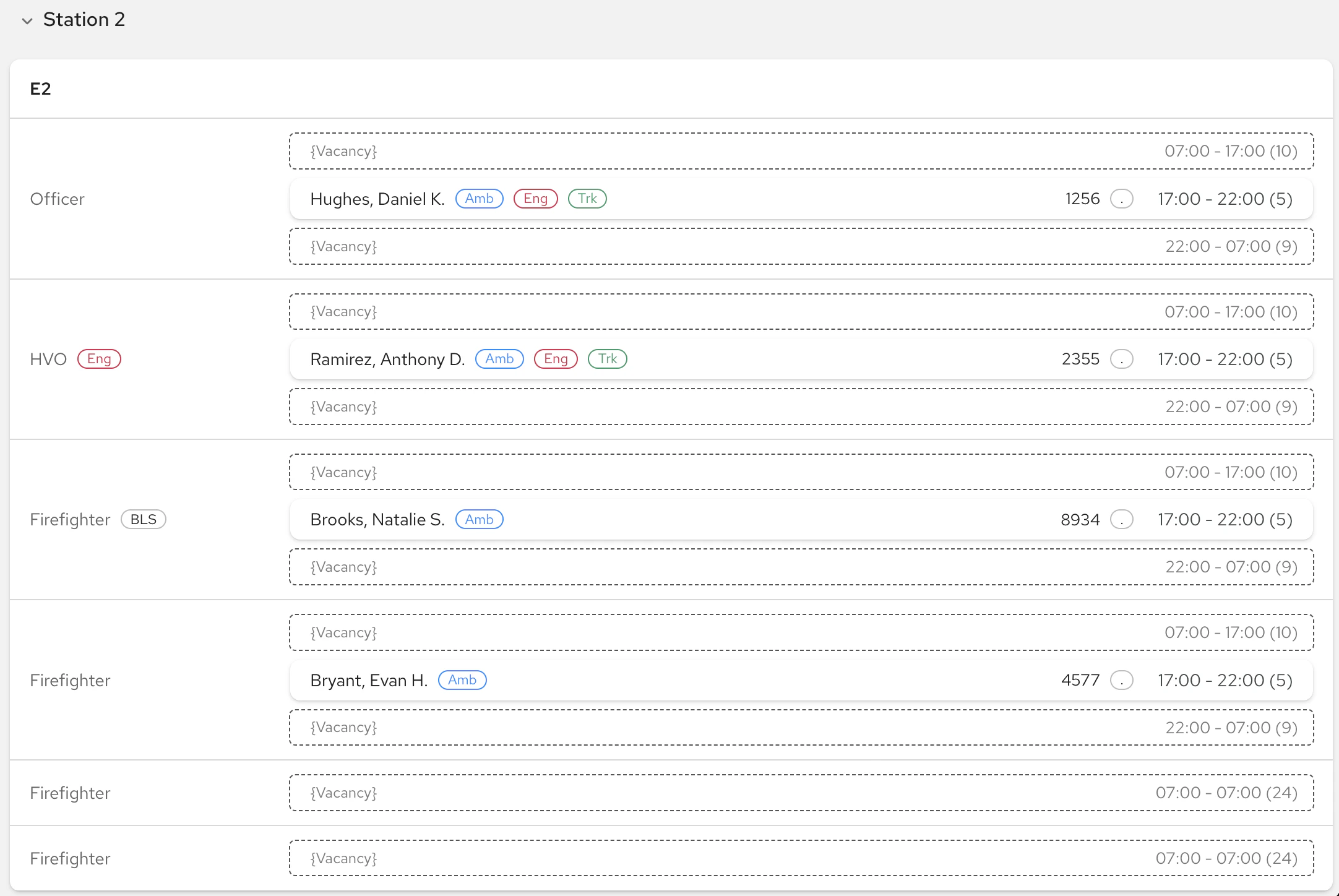

Non-Working Events
Non-working events, such as vacation leave, may display on your roster if configured by your organization. These events will not fill vacancies on the roster, and will create a vacancy if a person uses leave in an assignment that requires backfill.Qualifications
Positions on the roster may require certain qualifications to be filled as configured by your organization. These qualifications are identified by their abbreviation next to the position name. A person’s qualifications will display next to their name on the roster if configured by your organization. A user may have qualifications that are not listed next to their name if your organization has configured certain qualifications to not display. These hidden qualifications will still fulfill position requirements. A person’s full list of qualifications can be found by viewing their profile. If a position is filled by a user who does not meet the rank and/or qualifications configured for that position, a warning icon will be displayed next to the event. There are times where a position may need to be filled by a person who does not meet the configured rank or qualification requirements. For this reason, the system still allows a Not Qualified warning to fill a vacancy.