> ## Documentation Index
> Fetch the complete documentation index at: https://docs.insourcesystems.com/llms.txt
> Use this file to discover all available pages before exploring further.
# Introduction
> Manage your own or employee's schedules with Insource Scheduling.
### Access the Scheduling App
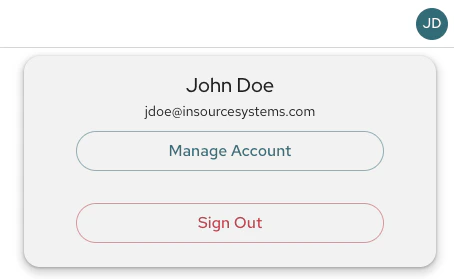
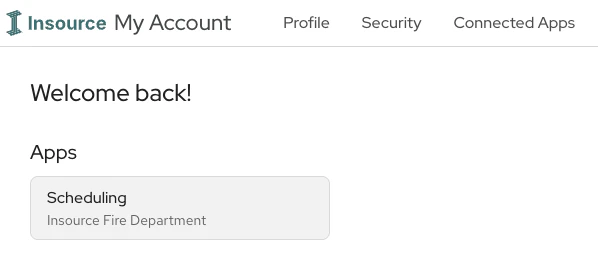
To access the app, [log in to your Insource account](https://insourcesystems.com/login). If you do not land on the **My Account** page, click your profile icon at the top right of the page and select **Manage Account**.
 You can select apps you have access to on your account home page.
 ***
### What do you want to do next?
View your calendar, sign up for shifts, schedule leave, and more.
View and manage an employee's calendar.
View and manage the daily roster.
***
### What do you want to do next?
View your calendar, sign up for shifts, schedule leave, and more.
View and manage an employee's calendar.
View and manage the daily roster.